
System Integration Setup
This guide covers the steps required to configure and connect a System Integration application. It picks up from the Quick Start Guide after you have created your application in the developer portal. If you have not read the Quick Start guide, we recommend doing so to ensure you are using the application type most suited to your workflow.
A system integration will allow you to use the Linnworks API found here.
Application Details
After creating your application, the developer portal will generate credentials and present a details page for your application. The following fields are available:
| Field | Description |
|---|---|
| Application ID | A unique identifier for your application, generated by the portal. You will use this in API calls and in your installation URL. |
| Application Secret | A secret key generated alongside the Application ID. |
| Installation URL | This URL is used to install the application onto a Linnworks account. |
| App Logo | You can upload a logo for your application that will be shown in the Linnworks app store and on installation screens. This must be 140x140px. |
| Summary | An internal description of your application for your own reference, not shown to users. |
| Description | A short description of your application displayed to users during installation and on the Linnworks application store. |
Application Manifest
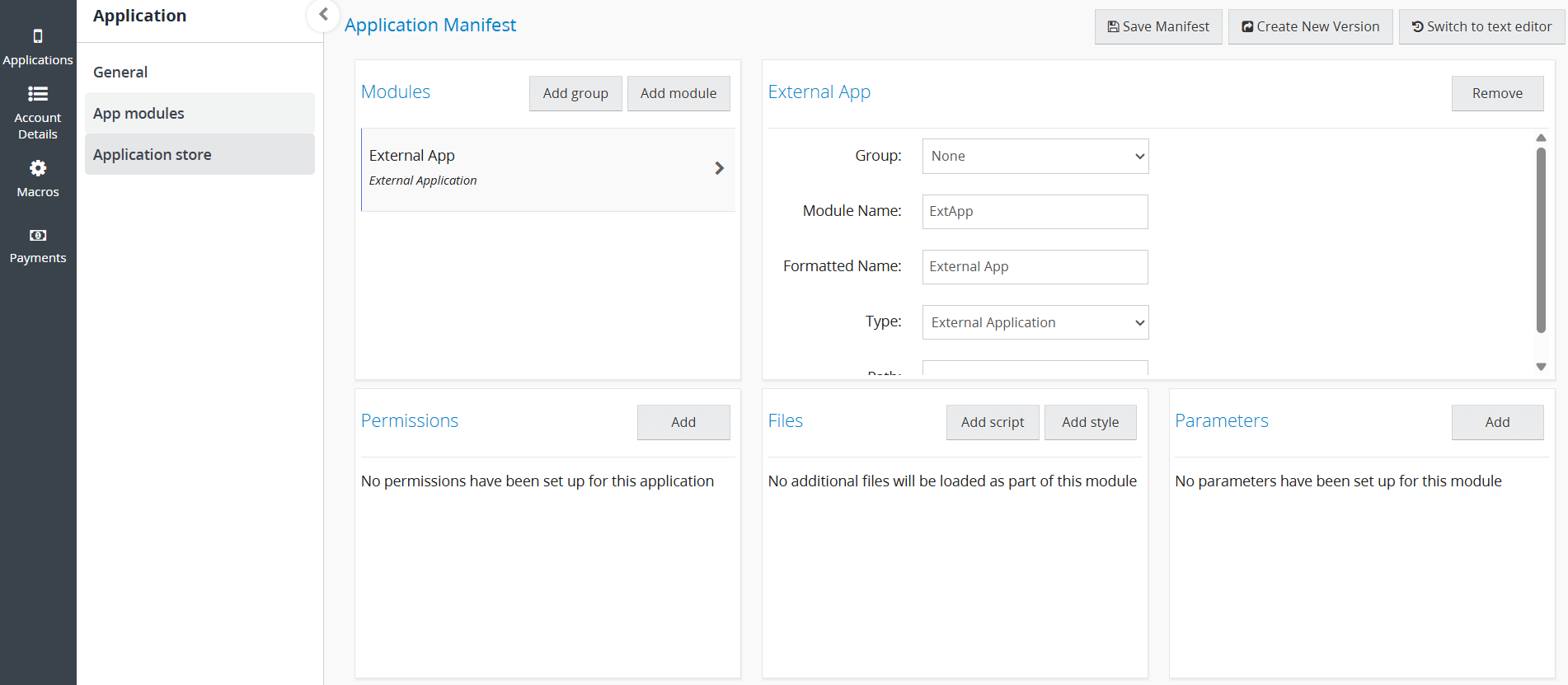
The application manifest defines the modules your integration exposes to Linnworks. For a System Integration, the manifest will already contain an External Application module. This is the correct module type and does not require any changes. If you delete it by accident, just click Add module and then select the type External Application.
| Field | Description |
|---|---|
| Group | Grouping allows you to sort your modules into folders in the Modules section. This is for organisational purposes only. |
| Module Name | Name of the module. This is for organisational purposes only. |
| Formatted Name | Formatted name of the module. This is for organisational purposes only. |
| Type | Allows you to select the type of module, this is the core functionality of the module. In this case, keep it as External Application. |
| Path | Deprecated. |
Saving the Manifest
Once you have made any changes to your application modules, you can save this with the Save Manifest button. However, these changes will not be reflected on the Linnworks account.
You will then need to create a new version with the Create New Version button and follow the steps to create a new version of the application.
Users will always install the latest version when installing an application. Users who already have the application installed will be able to update the app via the application store.
Note: When installing the application on the same Linnworks account as your developer account, saving the manifest will automatically update the "Development Version" version of the application. This allows you to make changes to the manifest while developing without creating a new version. Also, you will have the option to specify which version of the application to install, but this will not be available to users who are not the developer account holder.
Installing the Application
To install the application, use the Installation URL found on the General page of your application. This process will allow you, or the owner of another Linnworks account, to install the application.
After installing the application you will be shown a Permanent token, you will also be able to see this in the Applications page on the developer portal alongside the list of installations. If you have provided a Postback URL, the token will be sent there instead.
Authorizing API Calls
Once you have received the Permanent token via your Postback URL, exchange it for a session token using the AuthorizeByApplication endpoint.
Endpoint: POST https://api.linnworks.net/api/Auth/AuthorizeByApplication
| Parameter | Type | Description |
|---|---|---|
ApplicationId | UUID | Your Application ID from the developer portal. |
ApplicationSecret | UUID | Your Application Secret from the developer portal. |
Token | UUID | The permanent token received through the application installation process. |
A successful response returns a session token in the Token field. Include this token in the header of all subsequent API requests made on behalf of that user.
Note: the session token has a limited lifetime. Re-authorize using the same Permanent token when the session expires.
The response also includes the Server field, which is used as the base URL in subsequent API requests. For example: {Server}/api/Orders/CreateOrders which could be https://eu-ext.linnworks.net/api/Orders/CreateOrders.
Optional: Postback URL
The Postback URL is an endpoint on your server that Linnworks can call when a user installs your application. It receives the installation token needed to authorize API calls.
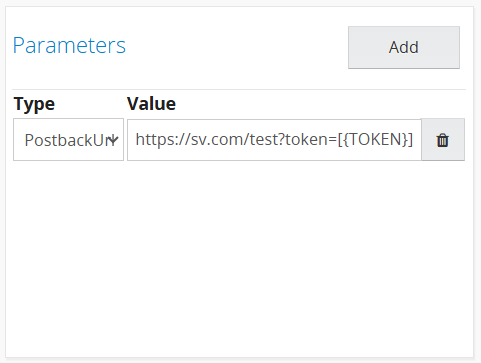
To add the Postback URL to your application manifest, go to the App Modules page and click the Add button in the parameters section. Use the [{TOKEN}] placeholder to receive the installation token in the request. [{TOKEN}] will be replaced by the permanent token.
Updated 5 months ago